

Prerequisites & Environment Setup
Software
1️⃣ Node.js (JavaScript Runtime)
Installation steps:
- Visit the official Node.js website.
- Download the LTS (Long-Term Support) version.
- Follow the installation wizard.
Verify installation:
node --version
npm --version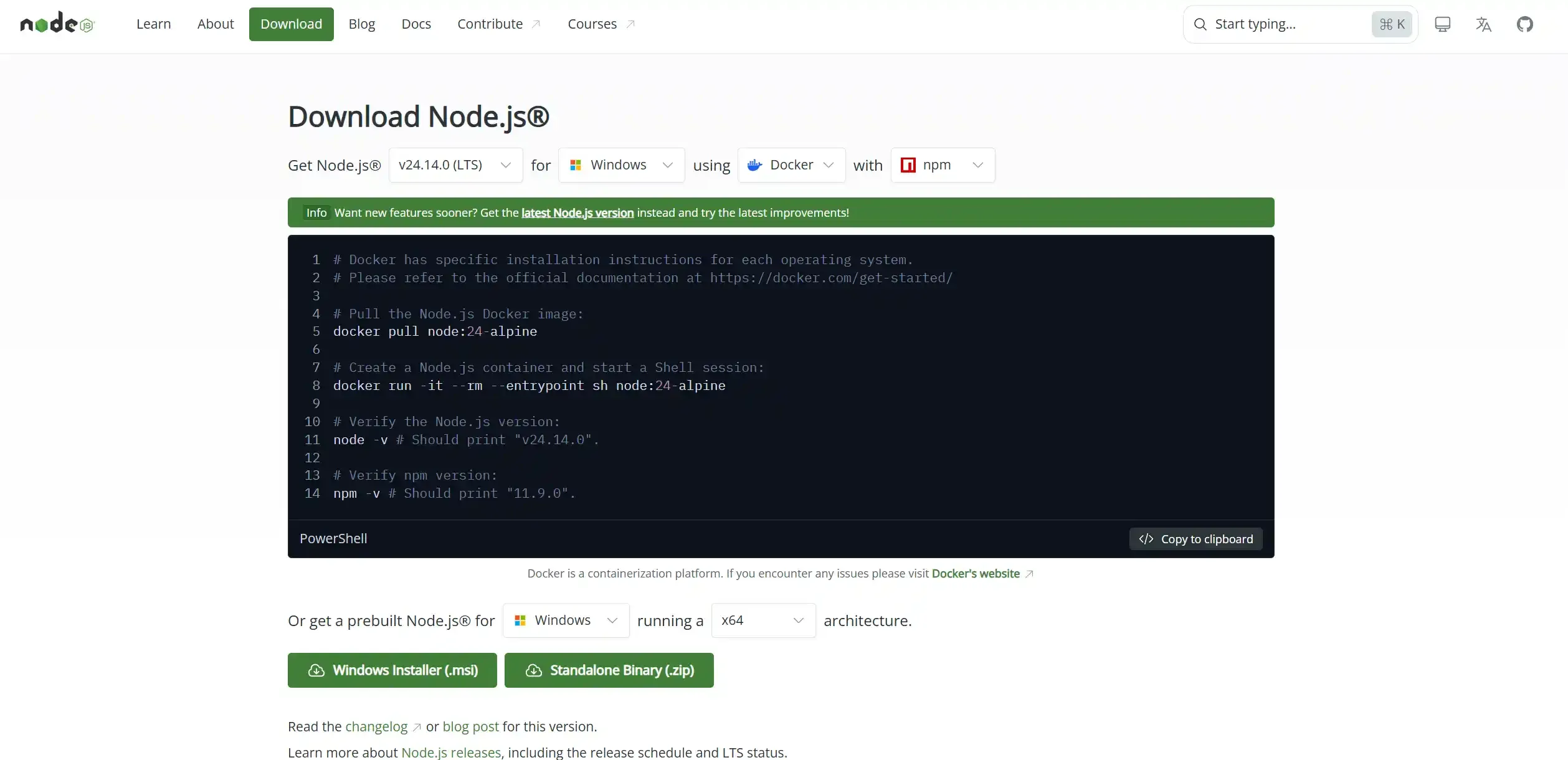
2️⃣ Git (Version Control System)
Installation steps:
- Visit the official Git website.
- Download and install the version for your operating system.
Verify installation:
git --version
What is Astro? Why Choose It?
Introduction to Astro
Astro is a modern frontend framework designed specifically for building fast static websites.
Why Choose Astro?
- High Performance
- Multi-Framework Support
- SEO-Friendly
- Easy Deployment
Key Concept
Static Site Generator (SSG): Generates HTML files at build time instead of generating pages dynamically on each request.
Create an Astro Project
Initialise the Project
Open your terminal and run:
npm create astro@latest my-website
cd my-website
npm run dev
Recommended Setup Options
When prompted during installation, choose:
- How would you like to start your new project? → Use blog template
- Install dependencies? → Yes
- Initialise a new git repository? → Yes
Verify Installation
After running npm run dev, visit:
http://localhost:4321You should see the example website running locally.
Understanding the Project Structure
my-website/
├── public/
├── src/
│   ├── components/
│   ├── content/
│   ├── layouts/
│   ├── pages/
│   └── styles/
├── astro.config.mjs
├── package.json
├── tsconfig.json
└── README.md
Important Directories
src/pages/– Each file becomes a route.index.astro→/about.astro→/about
src/layouts/– Shared layouts (e.g., navbar, footer).src/components/– Reusable components.public/– Static files copied directly to the final build.
Deploying to GitHub Pages
What is GitHub Pages?
GitHub Pages is a free static hosting service that deploys websites directly from a GitHub repository.
Configure Astro for GitHub Pages
Update astro.config.mjs:
import { defineConfig } from 'astro/config';

export default defineConfig({
  site: 'https://your-username.github.io',
  base: '/my-website',
});
⚠️ Warning: If you use a base path, make sure internal links (like
/about) are updated to/my-website/about.
Test the Build Locally
Before pushing to GitHub:
npm run build
npm run preview
Custom Domain Setup (Optional)
If you own a domain, you can connect it to your GitHub Pages site.
Step 1: Configure DNS
At your domain registrar:
For root domain (example.com):
Type: A
Name: @/root
Value: 185.199.108.153
Value: 185.199.109.153
Value: 185.199.110.153
Value: 185.199.111.153
For subdomain (www.example.com):
Type: CNAME
Name: www
Value: your-username.github.io
Step 2: Configure in GitHub
- Go to Settings → Pages.
- Enter your domain in Custom domain.
- Wait for DNS verification.
- Enable Enforce HTTPS.
Step 3: Add a CNAME File
Create:
public/CNAMEAdd your domain inside:
yourdomain.comUpdate Your Site
git add .
git commit -m "Update website content"
git push origin main
About CoderHua
CoderHua is the author behind this blog.